PayPal Payment Guide
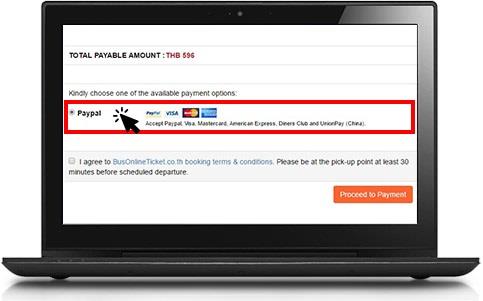
After you have selected your seat, you will be required to select your payment type. Please select PayPal as shown in the image and click “Proceed to Payment” button.
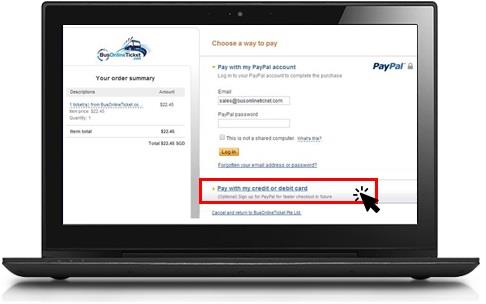
Once you have reach PayPal page, please click PayPay with my credit card or debit card link as highlighted in red box.
*Note : If you have a PayPal account, you can choose to login via your PayPal account to make payment.
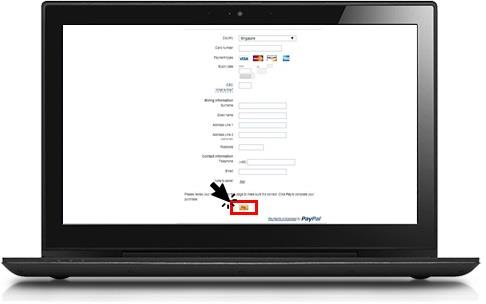
Enter your personal details, credit card details and click “Pay” button.
Done! You will then receive our confirmation email and you are ready to travel.
Alipay Payment Guide
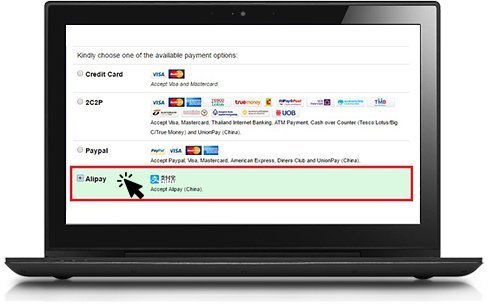
After you have selected your seat, you will be required to select your payment type. Please select Alipay as shown in the image and click “Proceed to Payment” button.
Please confirm the payment amount before you scan the QR code and make the payment via mobile phone.
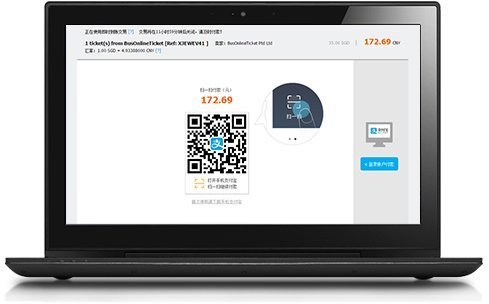
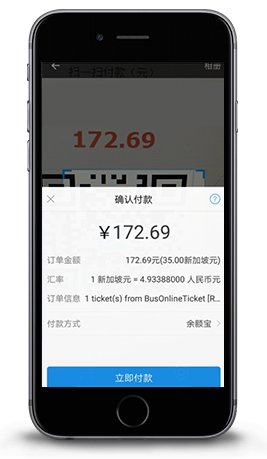
After you scan the QR code, it will lead you to the “Confirm Payment” page. Please proceed to confirm and make the payment.
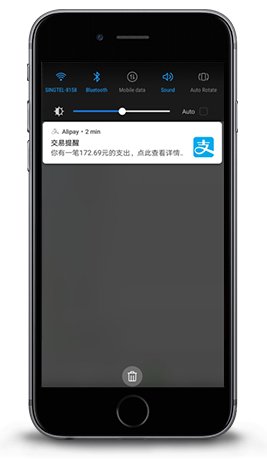
You will receive an SMS alert upon a successful payment. Your booking confirmation email will be sent to your designated email within 24 hours. Please check your email.
Kindly check your spam or junk folder if you could not see the e-mail.
If you still could not receive the confirmation, send us an e-mail to sales@busonlineticket.co.th